
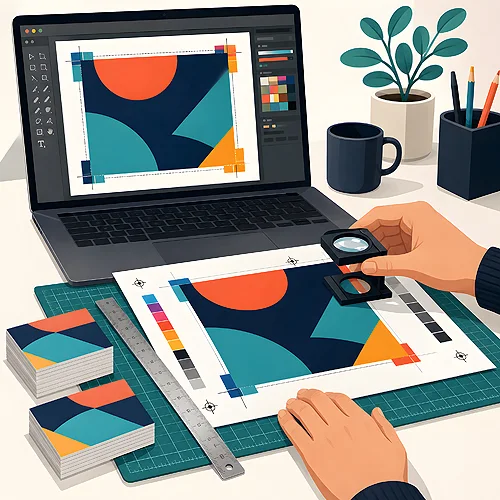
Know the feeling? You pick up freshly printed flyers, everything looks lovely, and along one edge runs a thin white strip that was not in the design at all. It is one of the most common "scary" effects in print - and at the same time one of the easiest to avoid, once you understand where it comes from.
Good news: white edges are almost never the machine's fault. They result from a few small things in the file that are easy to forget. In this post we explain in plain terms why they appear, what bleed and a safety margin are, and how to design "edge-to-edge" elements so everything holds together after trimming.
- White edges appear because the blade cuts with a slight tolerance, and the background does not extend past the cut line.
- Bleed is an overrun of the background beyond the edge - usually 3 mm - that "absorbs" small blade shifts.
- The overriding rule: extend the background to the bleed, keep important elements within the safety margin.
- When two colours meet, overprint and slight colour overlap (trapping) help.
- In double-sided projects, watch the alignment of the sides - front and back must match.
- Always check the file in a preview with the cut lines shown before you send it to print.
Where white edges come from in the first place
To understand the problem, picture how a finished flyer is made. First a large sheet is printed, holding several or a dozen jobs at once. Then the machine trims the sheet into single pieces. And here is the crux: the blade does not hit exactly the same spot every time. It has a slight tolerance - it can move a fraction of a millimetre one way or the other.
If your coloured background ends exactly on the cut line and the blade cuts slightly "inward", a tiny strip of unprinted, white paper is left there. That is what you see as a white edge. It does not matter how precise the machine is - a little slack always exists and has to be anticipated in the design, rather than counting on the blade hitting perfectly.
Bleed, or a safety buffer
The fix for white edges is wonderfully simple and is called bleed. Bleed is an overrun - a piece of the background that deliberately extends beyond the target edge of the job. As standard, it is 3 millimetres on each side.
The principle is intuitive. Since the blade can shift slightly, you give it a reserve to trim. Even if it cuts a touch "outward", it still lands in your background rather than in white paper. Even if it cuts a touch "inward", the background is still there. This three-millimetre buffer absorbs the entire cutting tolerance. Without bleed, every single, even the smallest, blade shift turns into a visible white strip.
Why 3 mm exactly? It is a practically proven reserve: large enough to absorb real blade shifts when cutting a stack of sheets, and small enough not to waste paper. If you are unsure what bleed to set in your project, take a look at our file preparation guide - we give ready settings there for various products.
Two zones: bleed and safety margin
Once you know about bleed, there is a second, equally important rule - only working the other way. It is the safety margin, an inner distance from the edge.
Three zones in every project
The whole art of designing "for the cut" comes down to one sentence: extend the background to the bleed, and keep important elements away from the edge. In practice you have three zones in the file worth thinking about.
- Bleed (beyond the edge) - only the background reaches here, colours and photos meant to run to the very brink. This part will be trimmed off anyway.
- Cut line - where the edge of the finished job will ultimately be.
- Safety margin (inside) - a distance from the cut line - at least 5 mm with us - where you place text, logos and everything that must not be trimmed.
Why is the margin so important? The same blade tolerance that causes white edges also works in reverse. If text or a logo sits right at the edge, the blade may clip a piece off it. A caption tucked inside, within the safety margin, is safe regardless of small blade movements.
Elements where two colours meet
A separate case is when two different colours or objects touch each other inside the project - for example a red field bordering a navy one, with no gap between them. Here the problem is similar to cutting, but concerns ink overlap.
When two colours are meant to meet perfectly, even a slight shift of ink layers can reveal a thin white gap between them. Two techniques come to the rescue, and it is worth knowing them at least by name.
- Overprint - means one colour is printed "on top of" the other instead of knocking out a hole beneath it. That way no white gap appears if the inks shift slightly. It is most often used for black text on a coloured background.
- Trapping - a deliberate, minimal overlap of neighbouring colours. The colours overlap by a hair, so even with a small shift no white line shows between them.
In practice, these settings are often handled by the printer at the pre-press stage, but it is good to know such a thing exists. If you deliberately design touching coloured fields, it is worth mentioning it or trusting that the producer will handle it. We write more about inks and their overlap in our post on how to choose types of black for text and backgrounds.
Double-sided projects and folded pieces - side alignment
White edges and shifts show up most where there is more than one side. Classic examples are double-sided business cards or folded flyers and brochures. An extra topic appears here: the alignment of front and back.
Imagine a business card with a coloured frame on both sides. The front and back are printed separately, and the paper can shift minimally when flipped. If both frames sit exactly at the edge, after trimming one may come out perfectly even and the other with a thin white strip or slightly shifted. That is why with double-sided projects it is especially worth to:
- Give backgrounds and frames a proper bleed - no coloured finish should end right at the edge.
- Move frames and thin lines away from the brink - the closer a thin frame runs to the edge, the more any minimal shift stands out. A thicker frame set inward forgives more.
- Check both sides together - make sure the elements meant to align on the front and back really sit in the same spots.
This applies not only to business cards. In folded pieces, the fold lines also have their own tolerance, so do not place elements that must not break exactly on the fold. The same philosophy as with cutting: leave yourself a reserve. This also applies to folded business cards, which measure 90×50 mm once closed - the crease runs through the middle of the sheet, so frames and logos are better kept away from the fold.
How to check it before sending
Before you send the file to print, it is worth taking a moment to review. This is the cheapest point to catch a problem - much cheaper than after the parcel arrives.
- Turn on the preview with cut lines - most graphics programs show the target format frame and the bleed area. Check that the background really extends beyond the cut line rather than ending on it.
- Move your eyes from the edge inward - run your gaze along all the borders and see whether any important text or logo stands too close to the cut.
- Look at both corners of a folded piece or both sides - for multi-page jobs, check them together, not separately.
- Export the file with the bleed preserved - when saving for print, make sure the bleed is not trimmed away with the rest.
If you are preparing a file for the first time and want to be sure everything is set up right, calmly use our help section - it walks step by step through the whole process. It is also worth reviewing our post on how a design preview differs from a production file, because what you see on screen does not always match what goes under the blade.
Finally, the simplest thought to take with you: print is not magic, just a physical process with a slight tolerance. White edges do not come from bad luck - they come from a lack of reserve. Give the background its bleed, move important elements away from the edge, check the file in a preview, and your edge-to-edge designs will come off the press exactly as you designed them.


